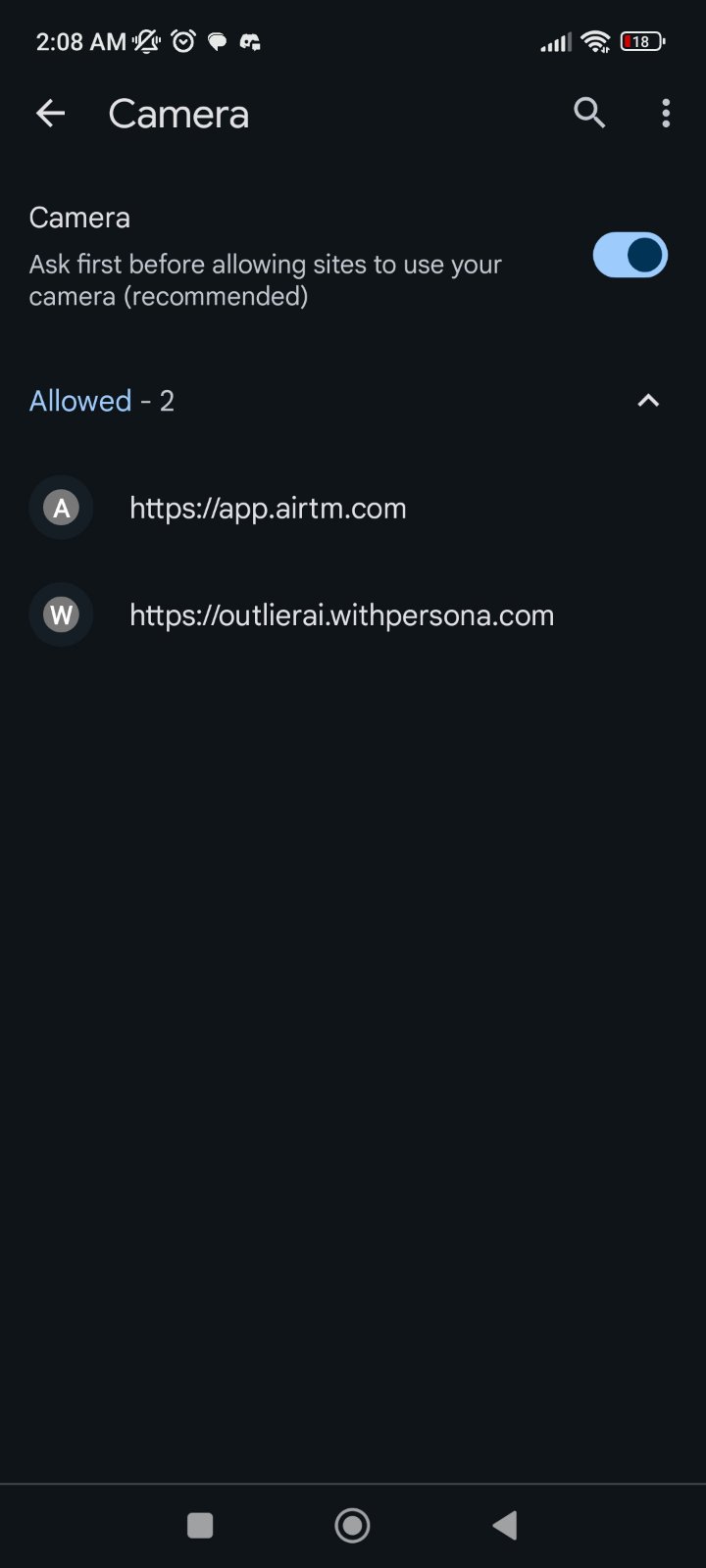
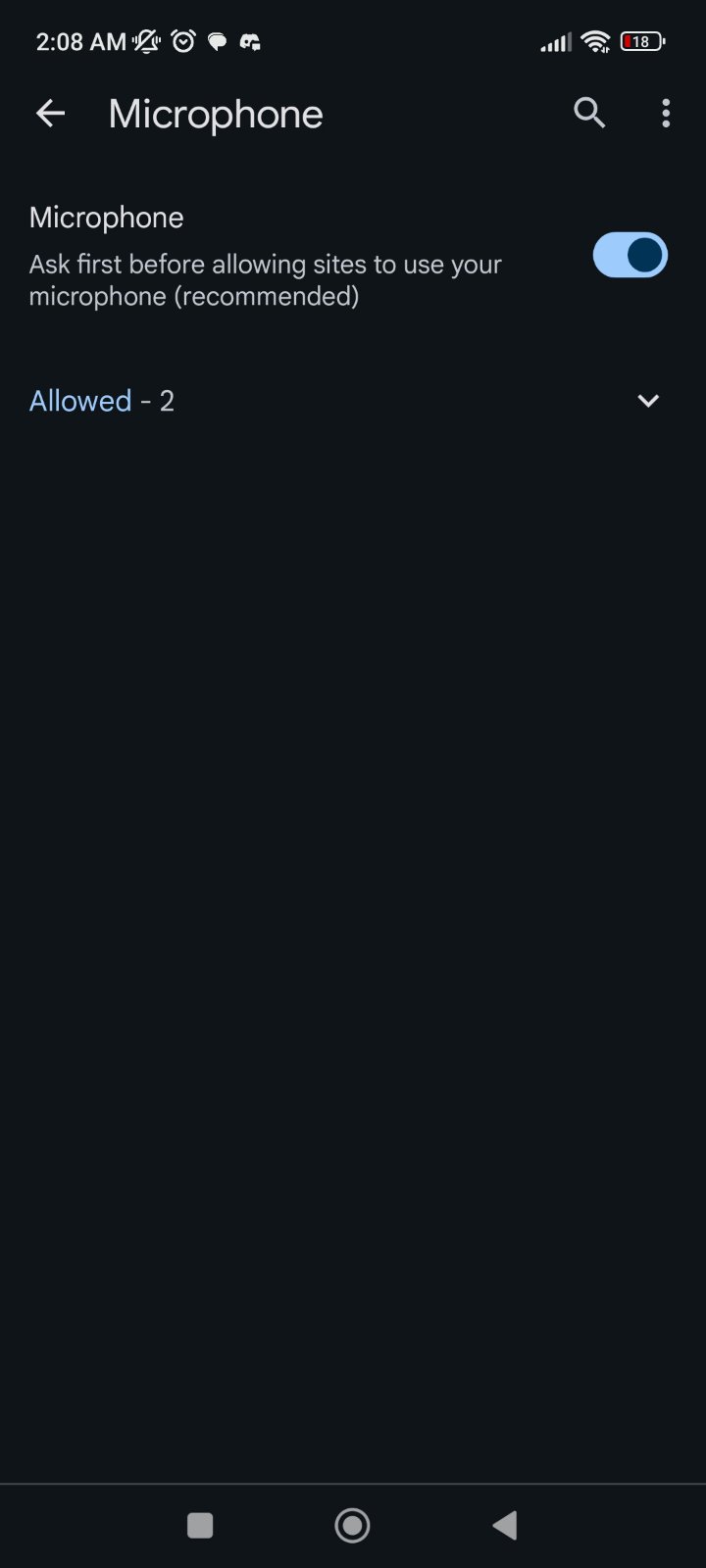
Camera & Mic Permissions
Steps to Allow Camera and Mic Permissions on Apple Safari
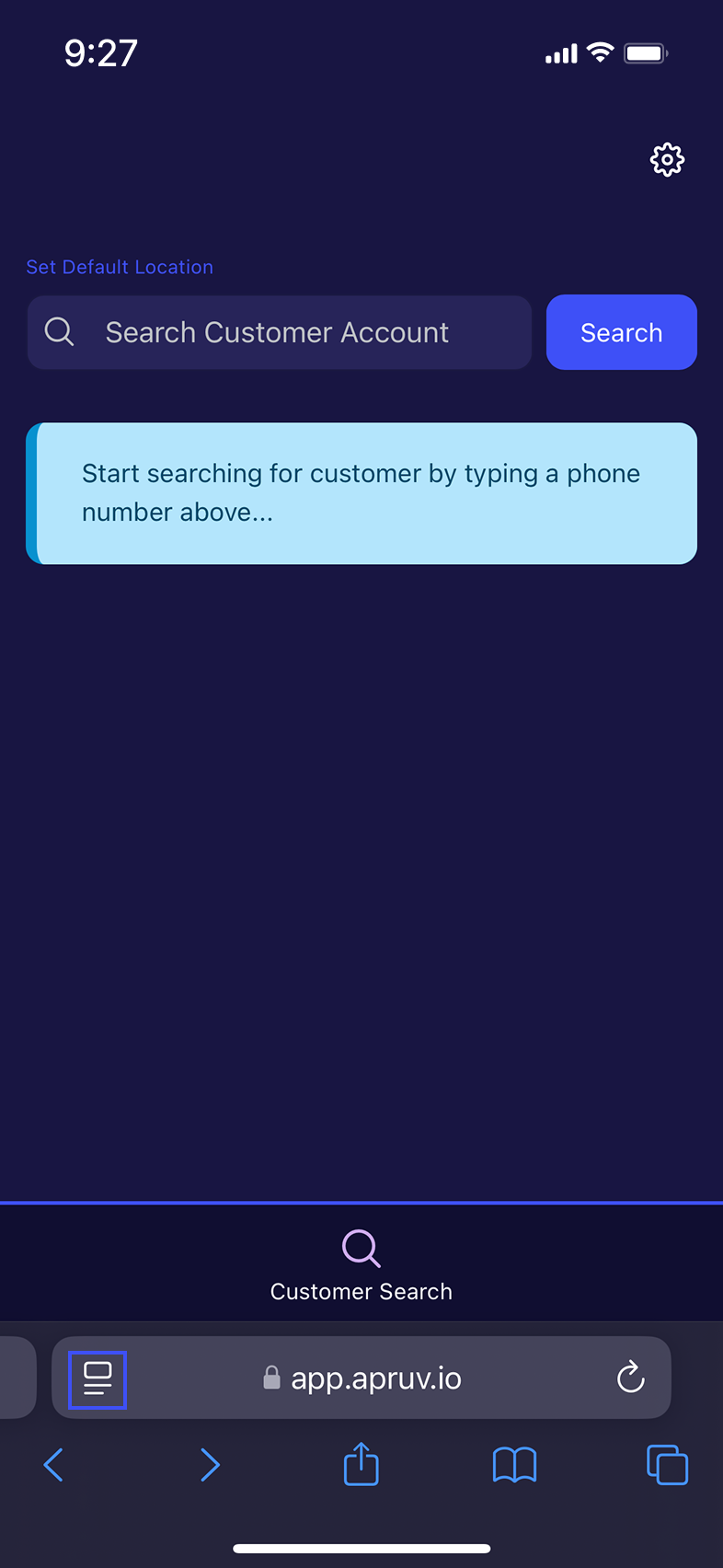
Step 1: Open Safari and visit the website app.apruv.io
Step 2: Tap the "aA" icon located in the address bar at the top-left corner of the Safari window.
Step 3: From the dropdown menu, tap "Website Settings".
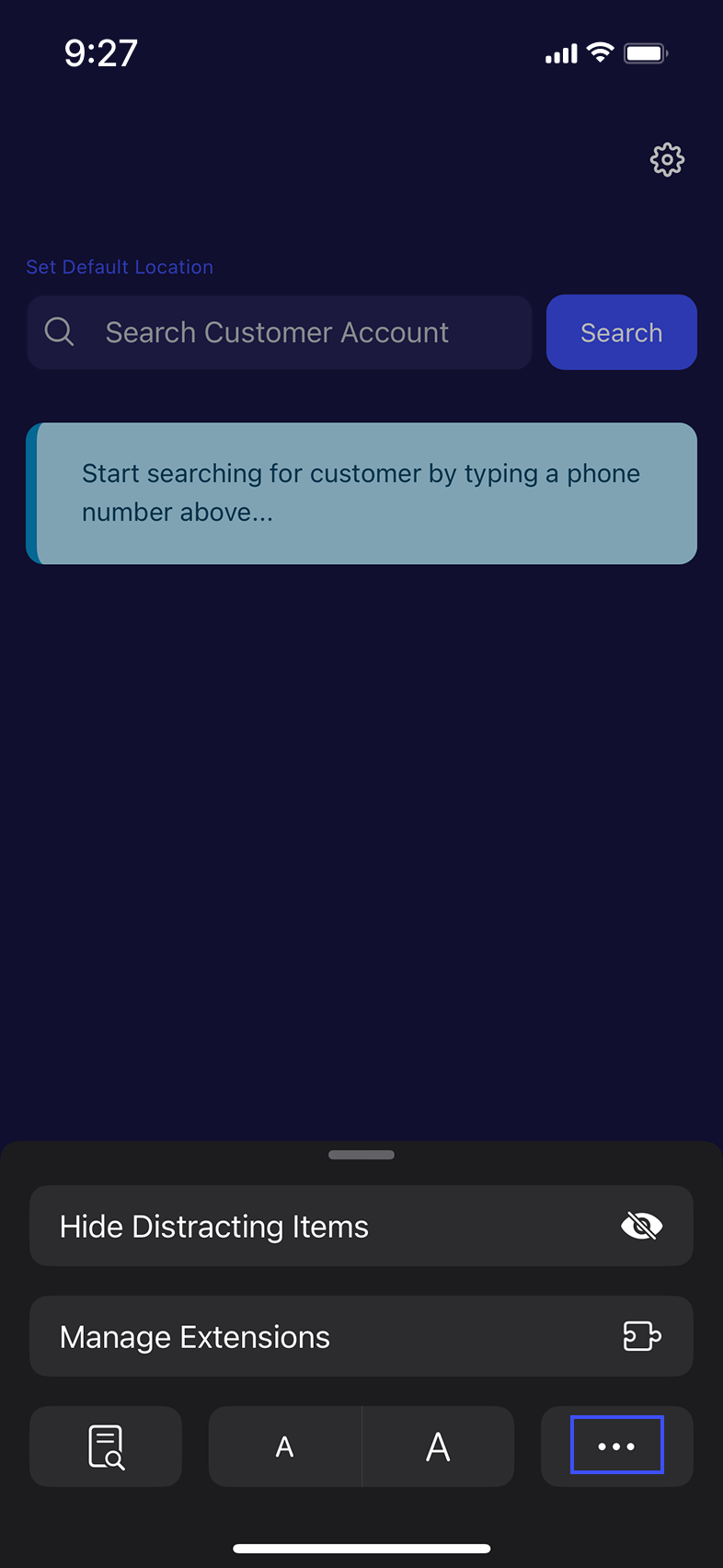
Step 4: Under Website Settings, locate the Camera and Microphone options.
Step 5: Tap each option (Camera and Microphone), then select "Allow".
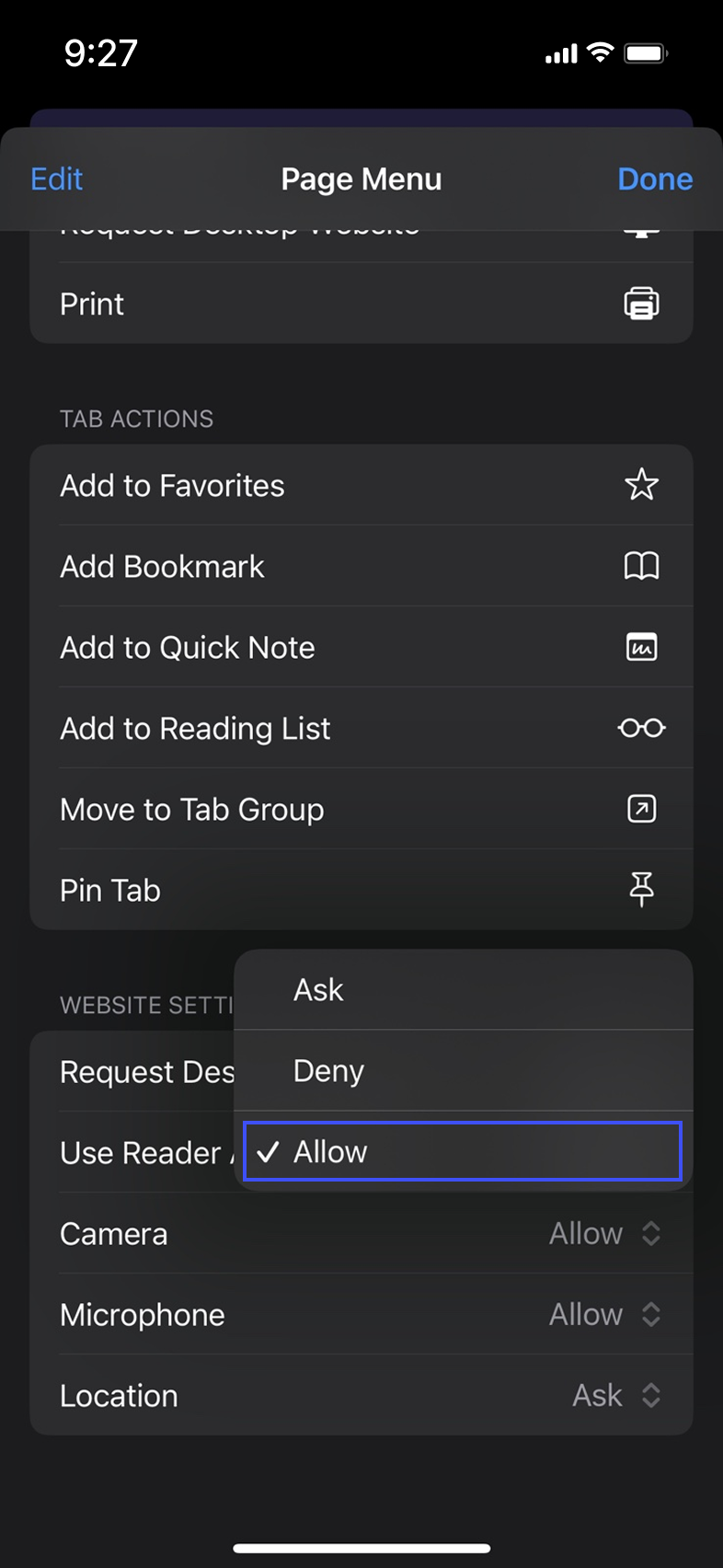
Step 6: Tap "Done" at the top right corner to save the settings.
Steps to Allow Camera and Mic Permissions on Android Chrome
Step 1: Open Chrome and visit the website app.apruv.io
Step 2: Access the Chrome Settings Menu
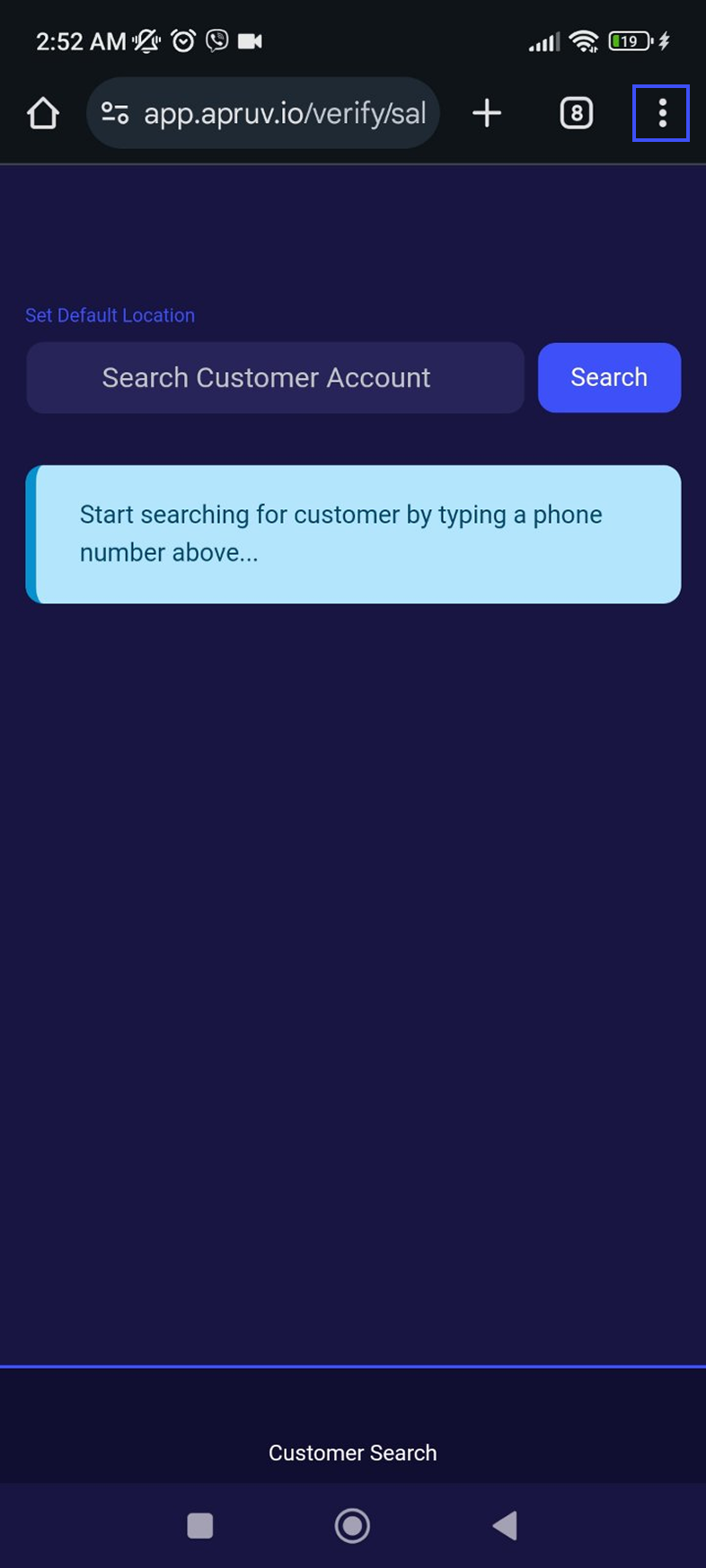
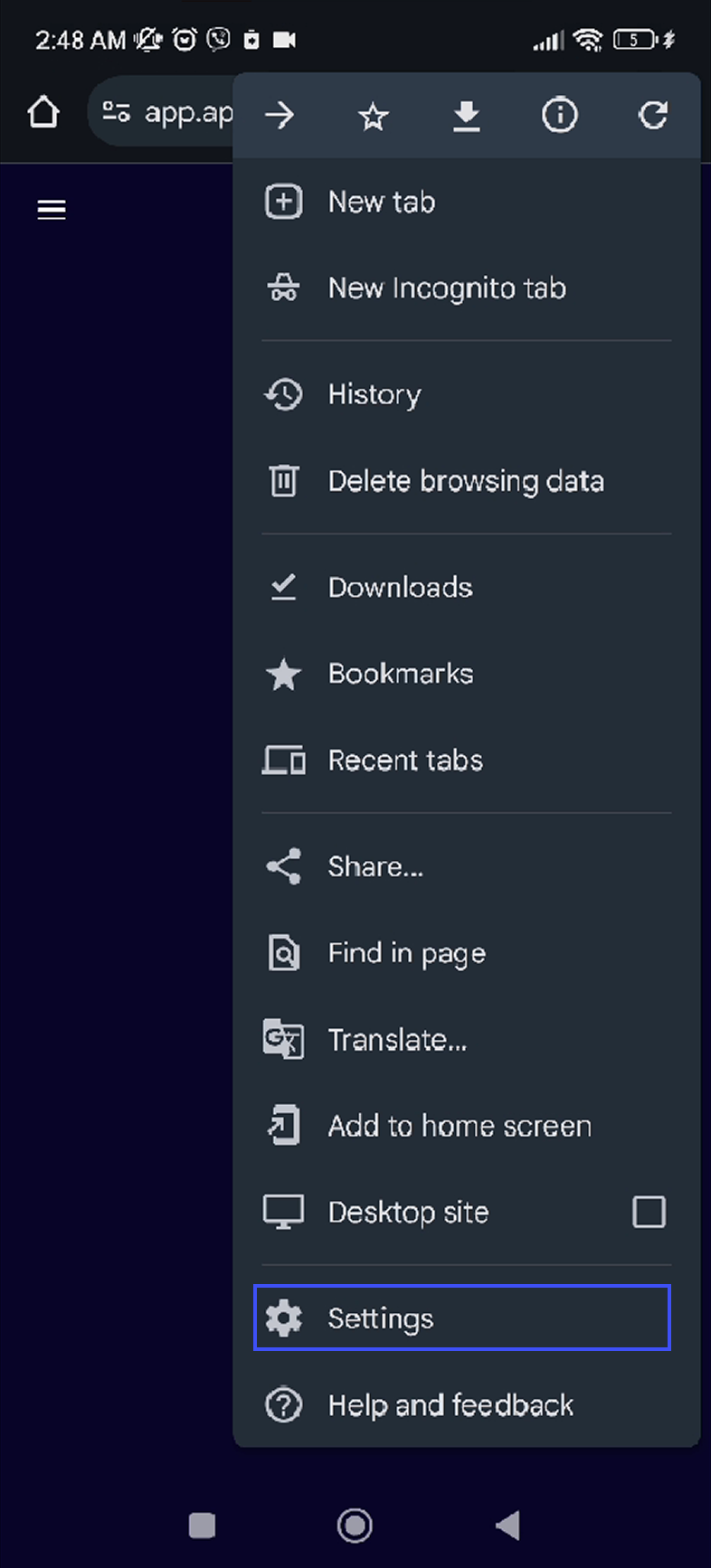
Step 3: Open the Settings Option
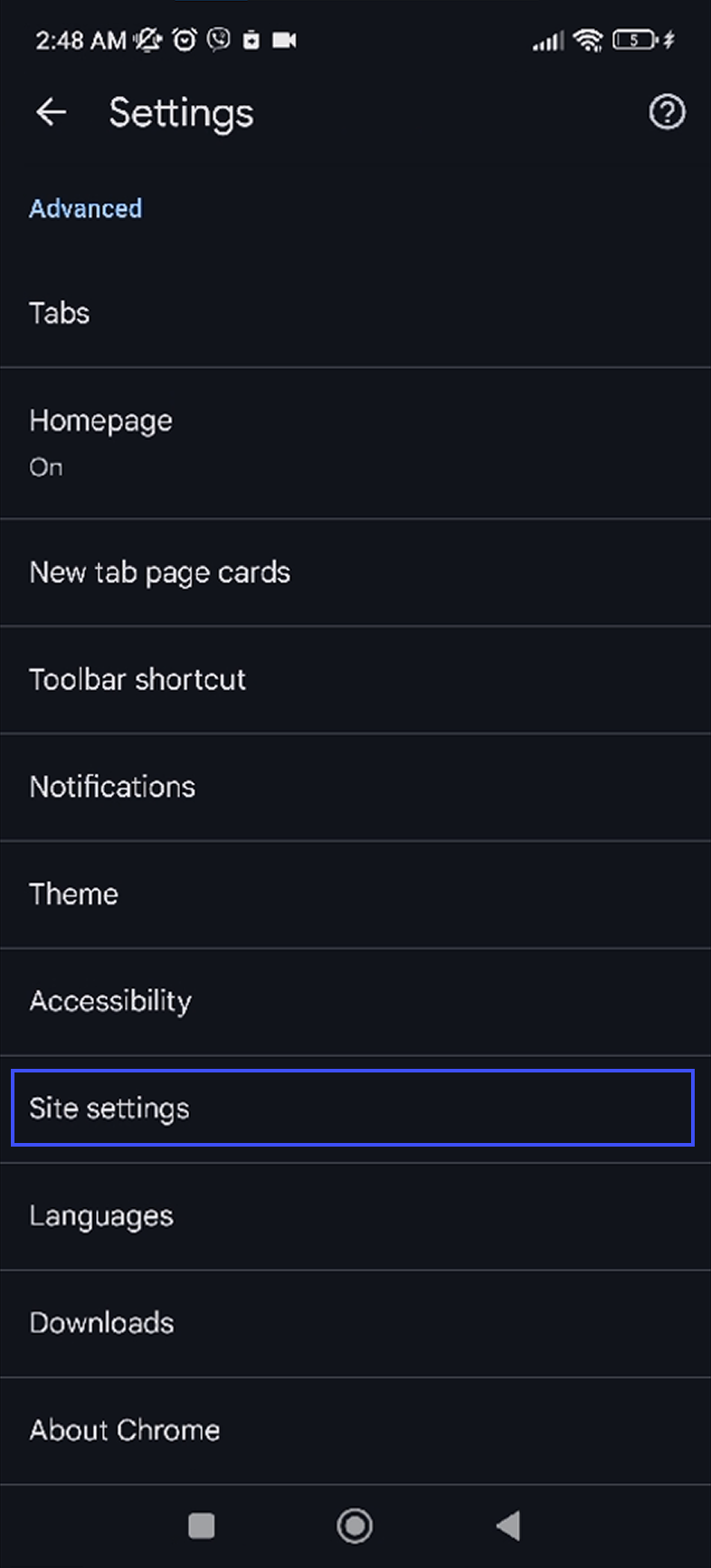
Step 4: Navigate to Site Settings
Step 5: Locate Microphone and Camera Permissions
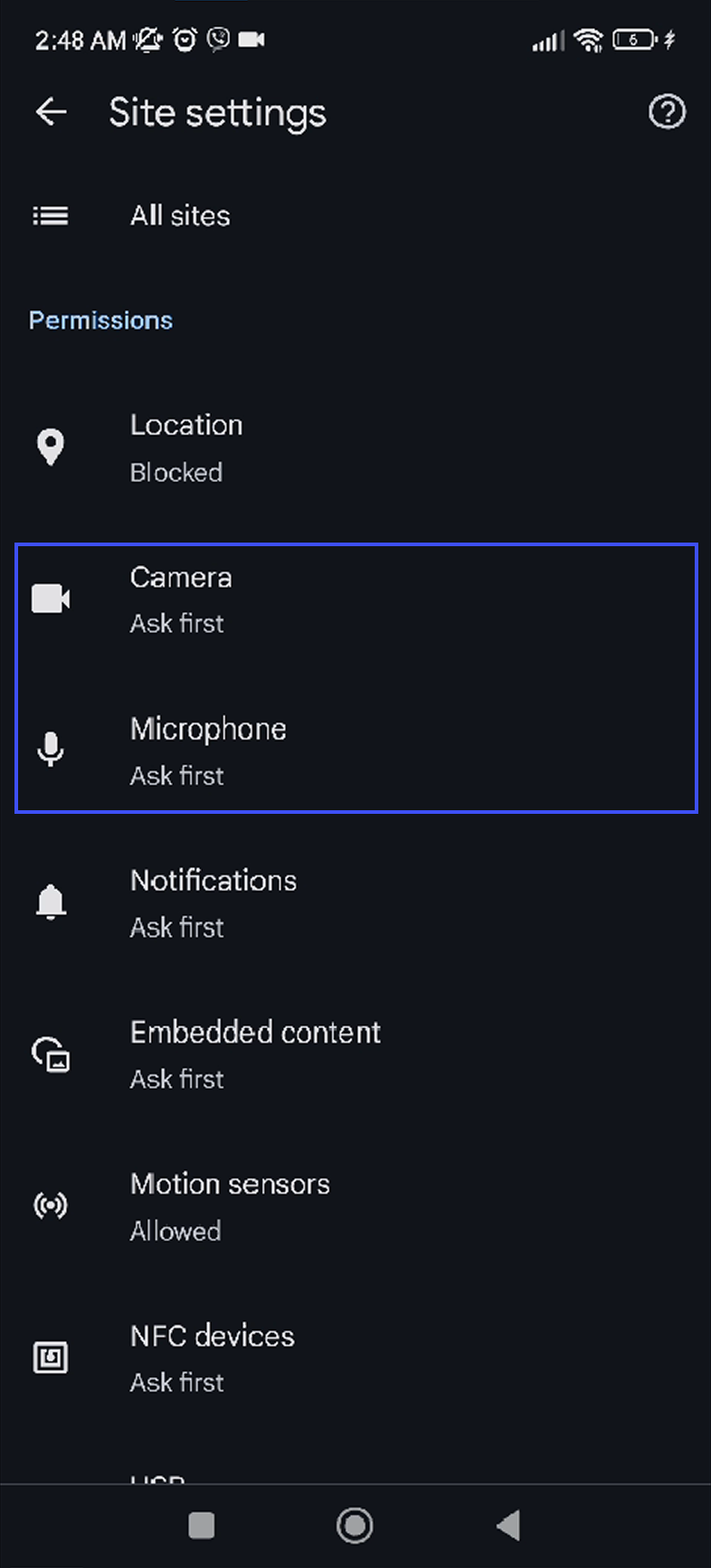
Step 6: Manage Permissions for app.apruv.io